 Neat
Neat
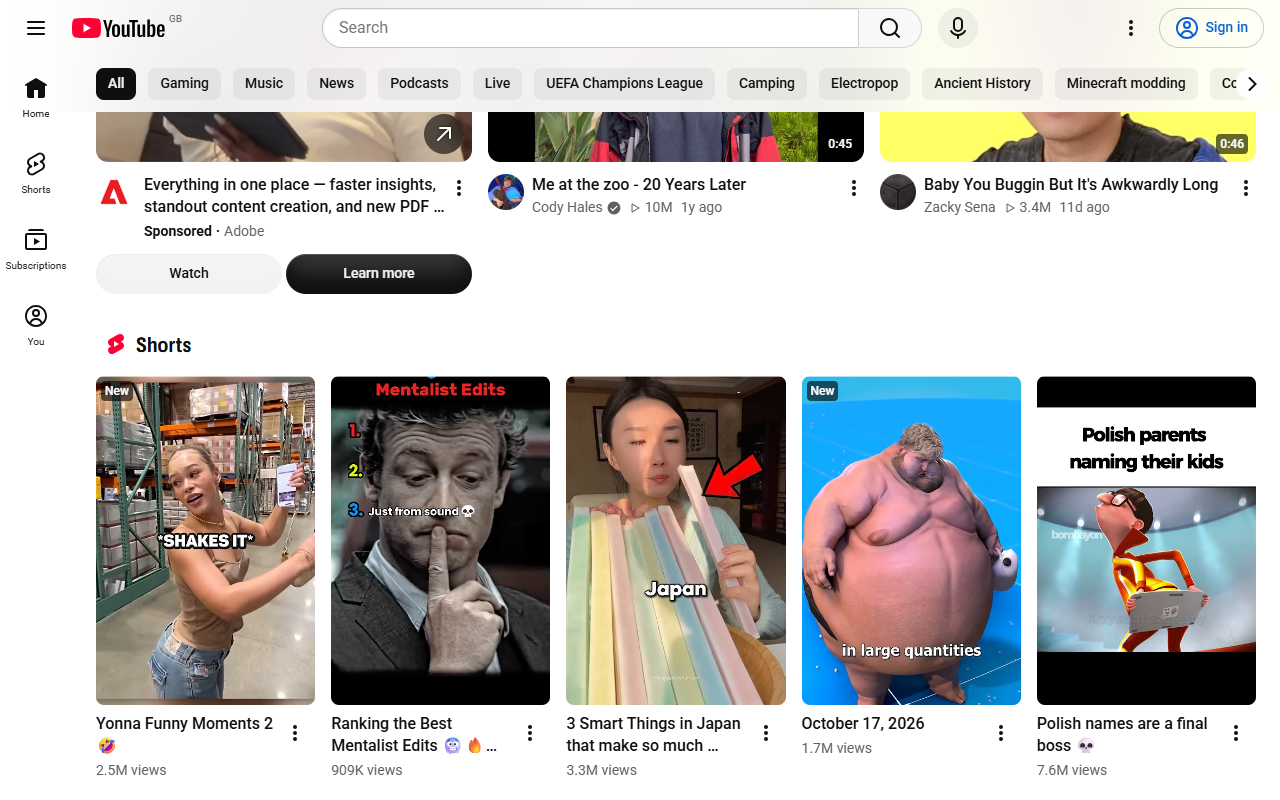
How to hide YouTube Shorts
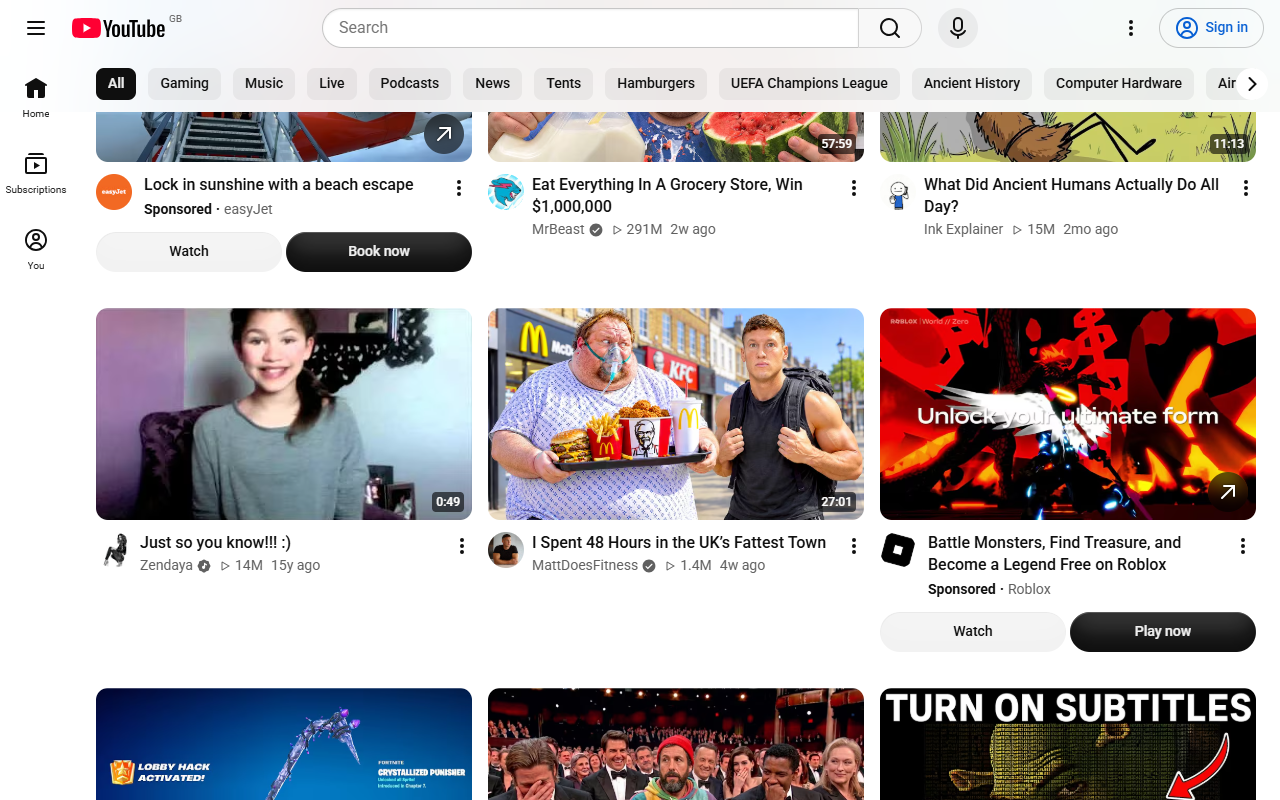
Install Neat for YouTube, a free Chrome extension. Shorts gone. YouTube back to videos. No settings to learn: Shorts disappear from Home, search, subscriptions, channel pages and the sidebar, and any Shorts link opens as a normal video.
Add to Chrome — coming soon
Pending Chrome Web Store review. The install link appears here once the extension is published.
- No account.
- Nothing leaves your browser.
- Open source.
What it does
- Removes the Shorts shelf from Home, Subscriptions and search results.
- Hides the Shorts tab and Shorts shelves on channel pages, and Shorts in the sidebar menu and notifications.
- Opens any /shorts/ link as a normal video page, with a normal player and controls.
- Optional: hide comments, end-screen suggestions, the recommended sidebar or the whole Home feed, and turn off autoplay.
- One master switch and a keyboard shortcut (Alt+Shift+Y) to turn everything off and on.
- Allow list: keep everything visible on the channels you choose.
- Changes apply instantly — no page reload.
- Light and dark mode. Tiny, fast, and idle when the page is idle.
Steps
- Click Add to Chrome.
- Open YouTube. Shorts are gone.
- Optional: click the Neat icon to choose exactly what to hide.
Is it safe?
How it works: Neat hides page elements with a style sheet inside your browser. Your settings never leave your device. To keep working when YouTube changes its layout, it downloads a signed list of hiding rules (a small JSON file of CSS selectors) — normally once a day, and never more than once an hour. That download carries no information about you, and the rules can only hide things: they cannot run code.